Gantt Chart Guide 2026: What It Is, How to Make One, Examples, Tools, and AI (Complete Guide)
Ganty Team
From "what is a Gantt chart?" to "how to actually run one with your team," this guide consolidates everything about Gantt charts into a single article. Whether you're new to project management or a veteran PM looking for sharper practice, you can jump to the chapter you need.
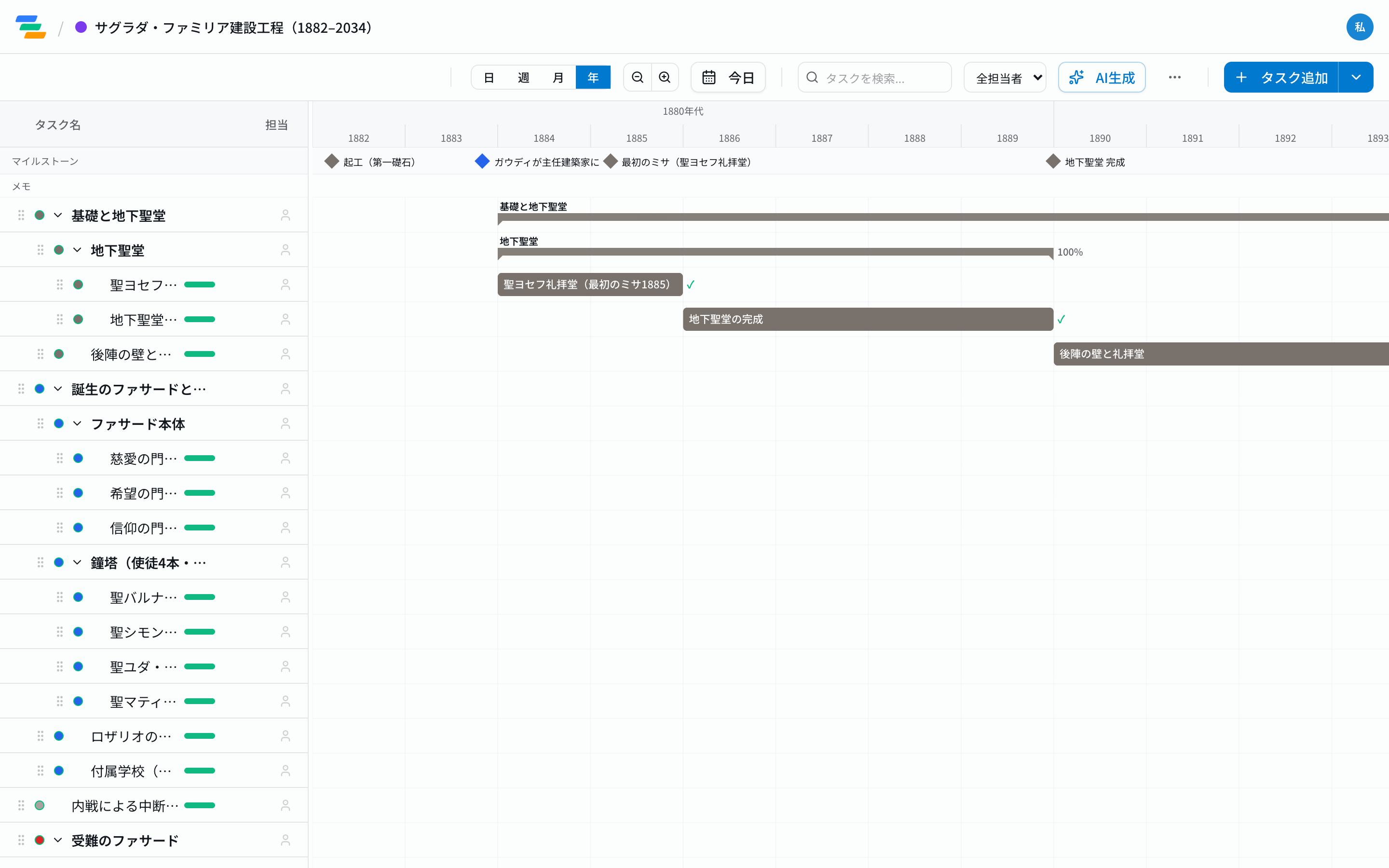
Table of contents
- Chapter 1: What is a Gantt chart? (Definition, history, 5 components)
- Chapter 2: Four types of Gantt charts
- Chapter 3: How to make a Gantt chart (5 steps)
- Chapter 4: How to read a Gantt chart
- Chapter 5: How to choose a tool
- Chapter 6: AI and Gantt charts
- Chapter 7: Industry-specific patterns
- Chapter 8: Common pitfalls and remedies
- Chapter 9: Advanced techniques
- Chapter 10: Running it with your team
- Next steps
Chapter 1: What is a Gantt chart?
Definition
A Gantt chart is a diagram that visualizes project tasks as horizontal bars on a timeline. Tasks are listed on the vertical axis and dates on the horizontal axis, letting you see at a glance what is being done, when, and for how long. It has been used in project management for over 100 years and remains the most widely adopted scheduling technique.
History: from Henry Gantt to today
In the 1910s, American mechanical engineer Henry Laurence Gantt invented this format to manage factory production. Originally drawn on paper, it spread worldwide after being adopted for munitions production during World War I. In the software era, Microsoft Project (1984) defined the tooling category, and today web-based SaaS dominates.
Five core components
Every Gantt chart is built from these five elements. Understand them and you can read any Gantt chart.
- Task bar: each horizontal bar is one task. The length of the bar equals its duration.
- Milestone: a diamond marker representing a key checkpoint such as a release or phase completion. Our how-to-set-milestones guide covers a 5-step method, industry examples, and how to write completion criteria.
- Dependency: an arrow linking tasks, expressing constraints like "Task B cannot start until Task A finishes." See dependency management.
- Progress: a fill inside the bar. 50% means the task is half complete.
- Assignee: the person owning the task, distinguished by color or name.
Chapter 2: Four types of Gantt charts
Not every Gantt chart is the same. Depending on the project, you'll see four typical shapes.
(1) Simple
Just tasks and durations. Ideal for small projects with 10 or fewer tasks. Doable in an Excel template.
(2) WBS-linked
Hierarchical structure with parent (phase) tasks and child (detail) tasks. Standard for mid-sized and above. Combine with a Work Breakdown Structure (WBS).
(3) Multi-project consolidated
Multiple projects displayed in a single Gantt chart. Lets you visualize resource conflicts across assignees. Requires a dedicated tool at the Pro tier or above. Ganty's consolidated project view is this type.
(4) Critical-path-emphasized
Highlights the critical path that determines the overall deadline, often in red. Essential for risk management on large projects.
Chapter 3: How to make a Gantt chart (5 steps)
Five steps any beginner can follow. We also have a step-by-step walkthrough in our how-to-build-a-Gantt-chart guide.
Step 1: Enumerate tasks (WBS)
List every task the project requires. Break a deliverable like "e-commerce site rebuild" into "requirements," "design," "implementation," "QA," "release." Aim for tasks lasting 1-5 days, though the rule often breaks. See task granularity best practices.
Step 2: Map dependencies
Spell out the order constraints between tasks. "Implementation cannot start until design is finished." Separate parallel tasks from sequential ones.
Step 3: Estimate durations
Base estimates on historical data from similar projects. For new tasks, add a 1.5x buffer over the optimistic estimate. See estimation tips.
Step 4: Assign resources
Assign owners. Check that nobody is double-booked across parallel tasks and that load is balanced.
Step 5: Design the tracking cadence
Set a weekly update rule and start operating. Update at least once a week to detect plan-vs-actual drift early. Pair it with a clear progress-report format.
Chapter 4: How to read a Gantt chart
Use "today" as your reference line
Draw a vertical line at today's date (most tools do this automatically). If a bar's progress is to the left of the today line, you're behind; if it's to the right, you're ahead.
Find the critical path
The longest chain of dependencies from start to finish is the critical path. A slip here delays the whole project, so manage it first.
Spot resource imbalance
Color-code by assignee and check whether any single person is overloaded. If one owner has 3-4 tasks in flight at once, rebalance.
Measure distance to milestones
For each upcoming milestone, count the remaining tasks and judge whether today's progress puts you on track.
Chapter 5: How to choose a tool
Tools roughly fall into three categories.
(1) Excel / Google Sheets
The most familiar option. Fine for 10 or fewer tasks, 1-2 owners, and few changes. The limits show up once you need real-time collaboration, automatic dependency recalculation, or progress rollups. See Excel Gantt chart limits.
(2) Notion / Asana and other general tools
Notion's timeline view, Asana's timeline, etc. Gantt is a "bonus" feature. Flexible, but specialized features (auto dependencies, rollups, critical path) are weak. See Notion Gantt chart limits for the trade-offs.
(3) Dedicated Gantt SaaS
Ganty, Microsoft Project, Smartsheet, and others built specifically for Gantt charts. All the specialized features come standard. Migrate early once the project gets serious. See the 2026 tool comparison.
Chapter 6: AI and Gantt charts
AI-driven task generation
The biggest recent change is AI generating tasks. Type a one-line project description and AI proposes tasks, dependencies, and durations. Planning time drops by 70-80% in many cases, and the AI catches commonly missed work (environment setup, security checks, UAT). See our AI project management guide.
MCP: operate Gantt from AI directly
With the Model Context Protocol (MCP), you can drive a Gantt chart from Claude Desktop or Claude Code in natural language. Say "list the tasks needed before next week's release" or "show me all tasks at 50% progress." Ganty is one of the few in the industry to support MCP natively, free on every plan. See the MCP integration guide.
What AI is bad at
AI isn't a silver bullet. Internal politics, stakeholder management, and matching tasks to specific people's strengths still require human judgment. The right division of labor: AI makes a fast first draft, surfaces gaps, and aggregates progress; humans make the calls.
Chapter 7: Industry-specific patterns
IT and web development
Standard flow of requirements → design → frontend/backend dev → QA → release. Frequently combined with sprints (see Agile + Gantt).
Construction and manufacturing
Long-cycle scheduling matters most. Sharing schedules with subcontractors is critical, so external view-only links are highly valuable. See Gantt for construction and manufacturing.
Marketing and creative agencies
Creative production timelines plus parallel campaigns. Frequent client-facing progress sharing.
Event planning
Venues, speakers, deliverables, day-of operations. Lots of parallel tasks with a hard fixed deadline ("event day").
Remote and distributed teams
For async-first teams, the Gantt chart becomes "information sharing as a substitute for meetings." See async remote project management.
Non-traditional uses
Contract renewal tracking, periodic inspections, recruiting pipelines, training programs - plenty of non-project use cases work. See five non-traditional Gantt scenarios.
Chapter 8: Common pitfalls and remedies
Pitfall 1: the "we're on track" trap
Take "50% done" at face value and you'll be surprised by a slip right before release. Always ask what specifically is done and what's left.
Pitfall 2: the PM who starts coding
When a PM "helps out" on implementation, the team loses direction. The PM's job is to keep the team moving. See first-year PM mistakes.
Pitfall 3: burning every buffer
Buffer added to each task tends to get consumed task by task, missing the deadline anyway. Use Critical Chain (CCPM) to aggregate buffer at the project level.
Pitfall 4: bad task granularity
The "1-5 day rule" fails roughly half the time in practice. For exploratory tasks, wait-heavy tasks, and repetitive work, see how to size tasks.
Pitfall 5: discovering risks late
To avoid "unforeseen" surprises, run the risk management framework upfront.
Chapter 9: Advanced techniques
Critical path analysis
Find the chain of tasks that drives the overall deadline and pour your attention into it. Our how-to-calculate-the-critical-path guide walks through forward/backward pass, total float, and a 5-step CPM method with worked examples.
Pair with burndown charts
Gantt = plan; burndown = pace of progress. Looking at both lets you tell instantly whether things are on track. See the burndown chart guide.
Multi-period tasks (multiple bars on one row)
For recurring activities like "weekly stand-up" or "monthly review," show multiple bars on a single row. Ganty's signature feature - rare in the industry. See how to use multi-period tasks.
Measure with KPIs
On-time delivery rate, change frequency, resource utilization, etc. - quantify project health. We list 12 metrics in the PM KPI article.
Chapter 10: Running it with your team
Collaboration and sharing
The "PM updates everything" model breaks quickly. The distributed model where "each owner updates their own tasks" lasts longer. Real-time collaborative editing is a must-have. See team Gantt best practices.
Designing progress meetings
Instead of reporting progress in meetings, design things so progress is visible on the chart and meetings are reserved for decisions. See running effective project meetings.
Sharing with clients
Mailing Excel files is dated. A view-only URL that's always up to date is safer and more efficient. See five ways to share with clients.
Stakeholder management
Executives, the team, clients, subcontractors - each needs different information. Hierarchical information design matters. See the stakeholder management guide.
Color-coding rules
Pick a single axis - by assignee, by priority, by status - and design color-coding rules deliberately. Readability improves dramatically.
Next steps
Try building one in Ganty
After you understand the concepts, the next step is hands-on. Ganty's free plan (up to 3 members) gives you nearly every feature in this guide - AI generation, multi-period tasks, MCP integration - everything modern Gantt operation needs. No credit card required.
Browse industry-specific case studies
Curious how teams in your industry use Gantt? Our case studies page has examples from 21 industries.
Compare against other tools
Looking at Asana, Notion, or Backlog? See our comparison page for side-by-side breakdowns.
Last reviewed and updated May 2026. We update this guide as features and industry trends change.
Related Articles
Gantt Chart Basics: Everything You Need to Know to Get Started
A comprehensive beginner's guide to Gantt charts — what they are, how to read them, and how to use them to manage any project.
2026-04-08Burndown Chart Guide: How to Read, Create, and Use It Effectively
A complete guide to burndown charts: how to read them, create them, and use them effectively in agile projects, with real examples and pitfalls to avoid.
2026-03-24How to Create a Work Breakdown Structure (WBS): 5-Step Guide with Examples and Templates
How to make a Work Breakdown Structure in 5 steps, with industry-specific examples (IT, construction, marketing), Gantt chart integration, common pitfalls, and templates you can adapt today.