"We're still using Excel for Gantt charts, but I'm hitting a wall." "Every time multiple people edit the file, something breaks." "Changing one dependency means manually updating fifty rows." If this sounds familiar, you're not alone — surveys consistently show 70-80% of project managers worldwide still build Gantt charts in Excel. This article walks through eight concrete ways Excel-based Gantt charts break down in real teams, the migration playbook that actually works, and when Excel is genuinely fine.
Why Excel Became the Default
The reasons are obvious and real:
- Zero additional cost: Microsoft 365 is already licensed. No procurement.
- Near-zero learning curve: Everyone can use Excel. No onboarding.
- Endless templates: "Excel Gantt chart template" returns thousands of free files.
- Total flexibility: Add columns, formulas, conditional formatting — bend it any way you want.
These advantages are real — when projects are small. The cracks appear when projects grow, when more people get involved, when changes happen constantly.
Limit 1: Concurrent Editing Breaks
OneDrive and SharePoint look like they enable concurrent editing, but in practice:
- Real-time updates lag, and your changes get overwritten silently
- Conditional formatting and array formulas don't always co-edit cleanly
- Macro-enabled files (.xlsm) often refuse cloud co-editing
- "Which file is the latest?" becomes a perpetual question
The result: the PM becomes the "master file maintainer," consolidating everyone's changes manually. Time that should be project management becomes file management.
Limit 2: No Automatic Dependency Recalculation
"If Task A slips three days, Task B and C automatically shift three days." This basic dependency propagation is not native to Excel. You can build approximations with SUM, IF, and WORKDAY, but:
- Holiday/weekend-aware calculations require deeply nested formulas
- Multiple-predecessor MAX calculations break easily
- Inserting or reordering rows shatters references
Most teams give up and "manually adjust dates each time" — which is a leading cause of project delays.
Limit 3: The "FINAL_v3_REALLY_FINAL.xlsx" Problem
The classic Excel tragedy of file version chaos:
schedule_2026Q2.xlsxschedule_2026Q2_FINAL.xlsxschedule_2026Q2_FINAL_v2.xlsxschedule_2026Q2_FINAL_REALLY_FINAL.xlsxschedule_2026Q2_FINAL_FIX_2025-04-15.xlsx
Nobody knows which file is current. People work from outdated info, and downstream rework piles up. Dedicated tools always show the latest state by construction — this whole class of problem disappears.
Limit 4: Mobile and View-Only Sharing Is Painful
Opening an Excel Gantt chart on a phone is impractical — formatting collapses, interaction fails, and there's no quick "share via link." Sending Excel files to external stakeholders adds more pain:
- Security risk (mis-sent files, leakage)
- Macro warnings blocking opening
- No native way to share view-only without converting to PDF
Dedicated tools issue read-only share links instantly. Anyone with the URL views in a browser, no account required.
Limit 5: Per-Person Workload Is Invisible
Excel might have an "assignee" column, but seeing how busy "Tanaka" is this week requires manual filtering and counting. Across multiple parallel projects, individual overload only becomes visible after delays surface. By then it's too late.
Dedicated tools provide assignee filtering and automatic resource conflict detection — workload is always visible.
Limit 6: Changing Task Granularity Breaks the Layout
The classic Excel Gantt is a 2D grid: rows are tasks, columns are dates. Mid-project, when you want to:
- Add hierarchy (parent-child task relationships)
- Split one task into three
- Delete unused columns
conditional formatting ranges break, formula references shift, charts lose their data range. "Fixing Excel" becomes its own task that competes with actually replanning the project.
Limit 7: Manual Updates Every Status Cycle
The weekly status meeting cycle in Excel:
- Collect progress percentages from each member
- Type them into Excel
- Update conditional formatting colors
- Paste into PowerPoint
- Distribute as meeting materials
Many teams burn 30-60 minutes per week on this. Dedicated tools let members update progress themselves, the PM reviews live, and the meeting just screen-shares the current state. Effective meeting practices become much easier when the data updates itself.
Limit 8: No Audit Trail
"Who changed what when" simply doesn't exist in regular Excel. The "Track Changes" feature requires Shared Workbook mode, which has its own limitations and rarely captures useful information. As a result:
- "Who changed this deadline?" has no answer
- Audit requests can't be fulfilled
- "He said / she said" disputes have no resolution
Dedicated tools log changes by default, providing real traceability.
Why Teams Stay Stuck on Excel Anyway
Even with all these problems, teams hesitate to migrate. The reasons cluster around three concerns:
- Migration cost: "Moving everything from Excel sounds like a lot of work."
- Learning curve: "Teaching everyone a new tool feels painful."
- Procurement friction: "Getting approval for a new tool subscription is a hassle."
In most cases, these concerns are significantly exaggerated.
The Right Migration Path
Step 1: Try It on One Project
Don't roll out company-wide. Pick one small project and have the PM try it personally for one week. The difference from Excel becomes obvious very quickly.
Step 2: Share Concrete Wins Internally
"Status meetings dropped from 30 minutes to 5." "Dependency updates take seconds instead of an hour." Quantitative wins are what drive internal momentum.
Step 3: Roll Out to Other Projects
With learnings from the pilot, expand to other teams. Internal templates and best practices accelerate adoption.
Step 4: Allow a Parallel Period
For hesitant members, allow temporary parallel use of Excel. As long as the new tool exports to Excel, you can still hand files to Excel-only stakeholders. After 1-2 months of parallel use, teams typically converge naturally on the dedicated tool.
When Excel Is Actually Fine
Honestly, Excel still works for some projects. If all of the following apply, don't bother migrating:
- 10 or fewer tasks
- 1-2 people involved
- Almost no changes
- No external sharing needed
- Status updates monthly or less
The moment any one of these conditions breaks, Excel's limits start surfacing as cost.
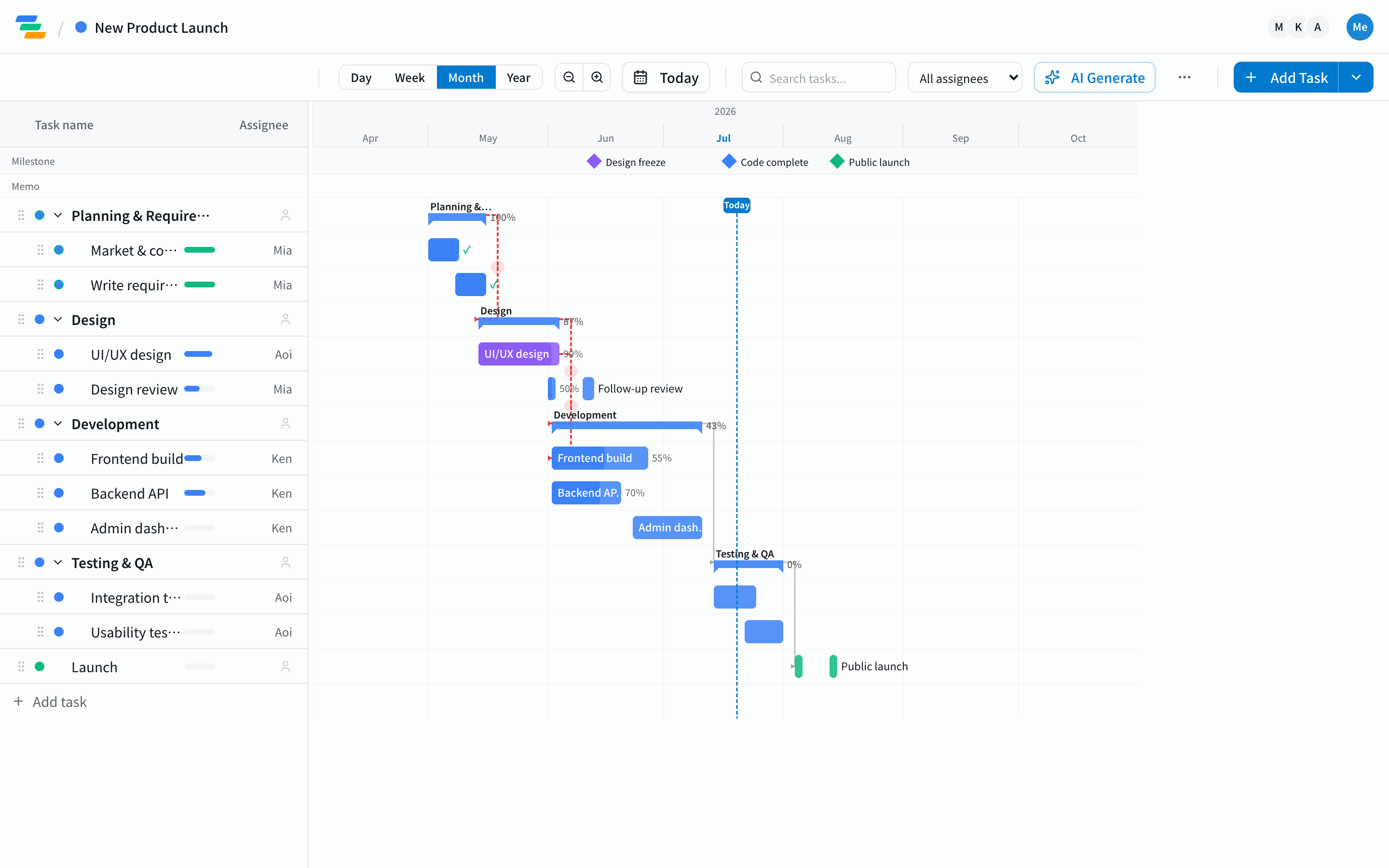
What Dedicated Gantt Chart Tools Solve
Mainstream dedicated tools structurally resolve all eight limits:
- Real-time collaborative editing without conflicts
- Automatic dependency recalculation
- Always-current state (no version management)
- Mobile-friendly view links
- Per-assignee workload visualization
- Flexible task hierarchy changes
- Automatic progress aggregation
- Change history and audit logs
What Ganty Specifically Offers
Ganty was built with Excel migration explicitly in mind:
- Free plan with full functionality: Solo and small teams pay nothing.
- AI generation: Type one line about your project; AI generates a structured Gantt chart with tasks and dependencies. Often faster and more accurate than copying from a template.
- Multi-period tasks: Recurring activities like weekly standups or monthly reviews can live on a single row — a feature most dedicated tools lack and Excel struggles with. See our multi-period task guide for details.
- Share links: One click for view-only URL. External stakeholders need no account.
- Excel and PDF export: For colleagues who still want Excel, you can hand them a file generated from your live Gantt chart.
Bottom Line: Excel's Limits Surface Sooner Than You Think
Excel Gantt charts remain a valid choice for very small projects. But the moment you grow, expand the team, or accept frequent changes, the structural limits become real cost. If "migration cost" is your concern, just try one project for one week. Ganty's free plan removes the financial risk completely. The time you spend wrestling with Excel — that's the actual project management time you'll get back.
Related Articles
The Limits of Notion as a Gantt Chart Tool: 7 Pitfalls and What to Do Instead
Seven structural limitations of using Notion's timeline view as a Gantt chart — and how to combine Notion with a dedicated tool without throwing it away.
2026-08-21Three New Features: Custom Statuses, Japanese Holidays, and Excel Import
Ganty gains three features: custom statuses mapped to fixed categories, a Japanese holiday calendar on the timeline, and import from Excel / MS Project — so teams can move off spreadsheet schedules without losing their work.
2026-03-28Free Gantt Chart Templates: How to Choose, Use, and Know When to Move Beyond Them
A complete guide to free Gantt chart templates -- types, selection criteria, best practices, and when to upgrade to a dedicated tool.