How to Make a Gantt Chart with ChatGPT (2026): 3 Methods, Their Limits, and the AI-Native Alternative
Ganty Team
"Can't I just whip up a Gantt chart with ChatGPT?" — almost everyone tries this during planning. The short answer: ChatGPT can "make" a Gantt chart, but it can't "draw" one. Understanding that subtle distinction saves you a lot of detours. This guide covers three realistic ways to build a Gantt chart with ChatGPT (with sample prompts), then the limits most articles skip, and the 2026 answer for what comes next.
The short version
- ChatGPT can't render a chart. It generates the tasks, durations, and dependencies as text.
- Three realistic methods: ① Mermaid syntax / ② a spreadsheet table / ③ custom GPTs and AI tools.
- Every output is static — shift one date and you rebuild the rest by hand.
- To keep a plan connected to AI and alive, hand it to a Claude (MCP)-capable AI Gantt tool — the 2026 best practice.
Can ChatGPT actually make a Gantt chart?
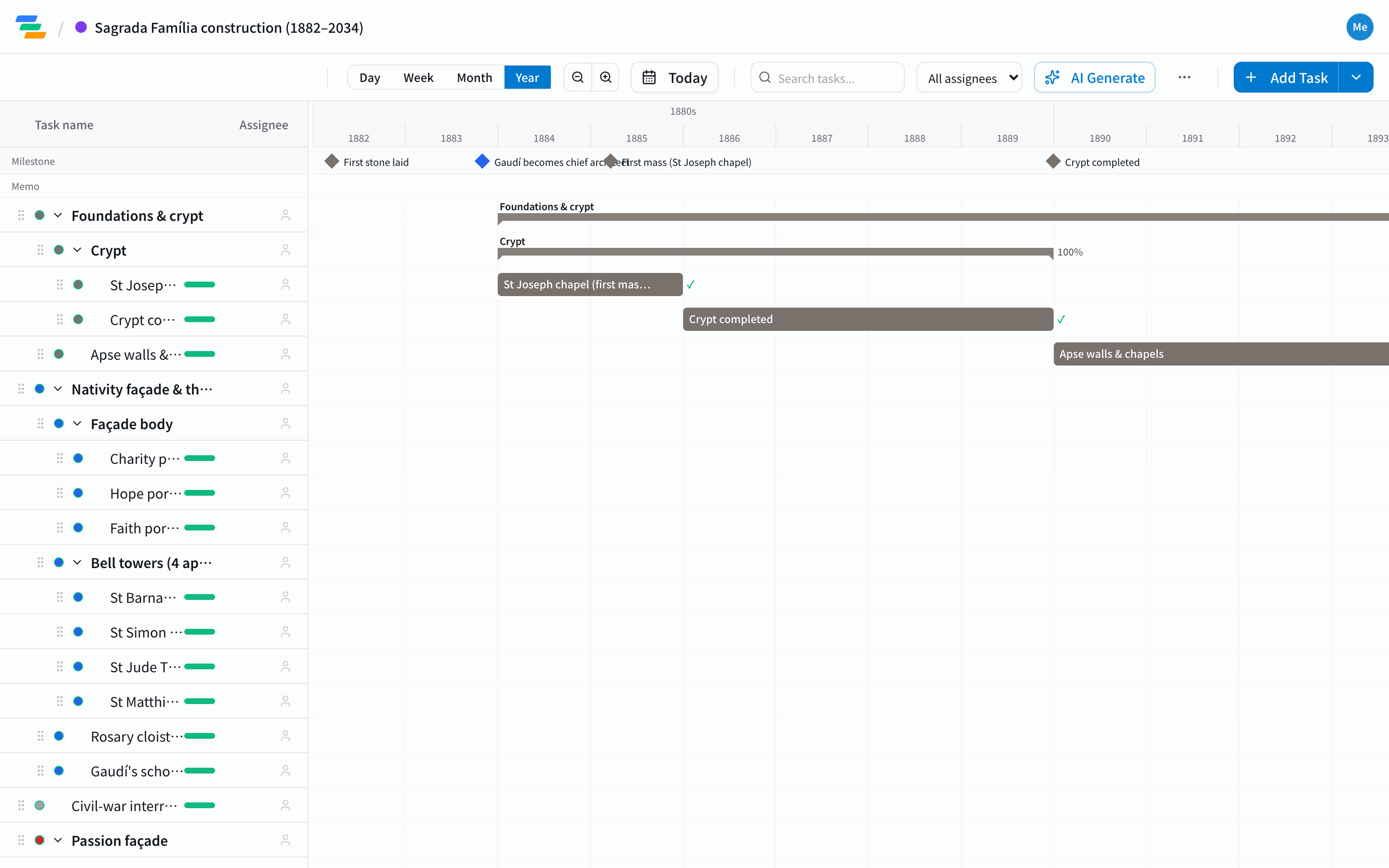
ChatGPT is great at generating text, code, and tables, but it cannot draw an interactive Gantt chart on screen. It can produce the contents ("Task A takes 5 days, then Task B takes 3…"), but turning that into a readable bar chart is another tool's job.
Once you accept that, the pattern is simple: draft the plan in ChatGPT, then pass it to a tool that can render it. All three methods below are variations on that pattern.
Method ① Mermaid syntax (lightest)
Mermaid turns text into diagrams. Have ChatGPT output Mermaid gantt syntax, then paste it into a compatible tool.
Sample prompt:
I'm planning a website redesign across five phases: requirements, design, development, testing, and launch. Propose tasks, durations, and dependencies, and output them as Mermaid gantt syntax. Start date is 2026-07-01.
Paste the result into the Mermaid Live Editor, Notion, Obsidian, or GitHub to render it.
Good for: quick visualization of a few short-lived tasks, embedding in docs.
Weakness: no owner/progress tracking; you hand-edit the code every time a date moves.
Method ② Generate a spreadsheet table
If you manage Gantt charts in Excel or Google Sheets, have ChatGPT output a table (task / start / end / owner / progress) and paste it in. Conditional formatting draws the bars.
Sample prompt:
Output the tasks above as a CSV table with columns: task name, start date, end date, duration, owner, dependency. Use YYYY-MM-DD dates.
Good for: fitting into existing Excel workflows, formula-based rollups.
Weakness: no automatic dependency recalculation; it breaks down as rows grow. See the limits of Excel Gantt charts.
Method ③ Hand it to custom GPTs or AI tools
There are "Gantt Chart Maker" GPTs and external prompt-to-Gantt tools. They're convenient, but the chart often stays locked inside that service and is hard to bring into your own workflow, with weak editing, sharing, and team management. See our AI Gantt tool comparison for how to choose.
The crux: the limits of ChatGPT (and one-shot AI)
All three methods share one weakness: the output is a static snapshot. Projects are living things — dates, owners, and priorities change daily. But a Gantt chart ChatGPT generated is cut off from the AI the instant it's made.
| What you want | ChatGPT alone |
|---|---|
| Draft tasks and durations | ◎ Strong |
| Render as a chart | ✕ Can't (needs another tool) |
| Auto-recalculate downstream after a shift | ✕ Manual redo |
| Keep the critical path while updating | ✕ Not maintained |
| Track owners and progress over time | ✕ Poor fit |
| Share and edit as a team | ✕ Poor fit |
So ChatGPT is a fantastic partner for drafting the plan — but the phase where you keep running the project needs a different mechanism.
The 2026 answer: a Gantt that stays connected to AI (Claude × MCP)
The Model Context Protocol (MCP), released by Anthropic in 2024, is a common standard that connects AI assistants directly to external services. It lets Claude (Desktop / Code / Cursor) operate a Gantt tool directly. Unlike ChatGPT's one-shot generation, the AI reads and writes the data inside the tool and keeps the Gantt moving.
Connect Ganty to Claude over MCP, and these all work in plain language:
- "List and add the tasks needed for next week's release" → tasks are actually added to the Gantt
- "Design slipped two days — push everything after it" → auto-reschedules while preserving dependencies
- "What's the critical path now?" → an exact, server-computed answer (not an AI guess)
| Generated by ChatGPT | Operated via Claude × MCP | |
|---|---|---|
| Nature | One-shot (static) | Kept alive (dynamic) |
| Chart / edit / share | Move to another tool | Edit, Excel export, share URL in place |
| Recalculation on changes | Manual | Automatic (keeps dependencies & critical path) |
| Team operation | Poor fit | Shareable as-is |
ChatGPT users: a practical workflow
If you live in ChatGPT, you don't have to switch. Use each tool for what it's best at:
- Draft in ChatGPT: task breakdown, durations, dependencies (methods ① / ②)
- Import into Ganty: drop the draft into a Gantt tool to get a real, editable chart — Ganty's AI auto-generates and structures the tasks
- Run it in Ganty: drag-and-drop adjustments, Excel export, team sharing. With Claude, operate it in natural language via MCP
Let AI "make the plan" and a Gantt tool "keep it moving" — the lowest-friction approach in 2026.
Summary
You can make a Gantt chart with ChatGPT — but it can't draw one, you have to pass it to Mermaid, a spreadsheet, or a dedicated tool, and the output is static. Use ChatGPT freely for the first draft, and hand the "living Gantt" to a tool that stays connected to AI.
Ganty is free for up to 3 members and covers everything from importing a ChatGPT plan to running it in natural language through Claude (MCP). Try it free, or get the big picture in our guide to automating project management with AI. New to the basics? Start with the complete guide to Gantt charts.
Related Articles
Claude Gantt Chart: How to Create and Actually Operate One (2026)
Three ways to make a Gantt chart with Claude — Artifacts/Mermaid, Claude Code skills, and MCP integration — compared. Artifacts are quick but one-shot and static. With MCP, Claude Desktop and Code read, write, and recalculate a live Gantt chart in natural language. Includes setup steps.
2026-06-06How to Auto-Generate a Gantt Chart with AI (2026): Free, Step by Step
Type a one-line project description and let AI generate the tasks and schedule. This guide covers exactly how to auto-generate a Gantt chart with AI for free, prompt tips that improve accuracy, and how to keep it running instead of stopping at a one-shot chart. Ganty is free forever for up to 3 members, no credit card.
2026-09-18The Best AI Gantt Chart Tools in 2026: Claude MCP, ChatGPT, and Specialized Platforms Compared
The 2026 buyer's guide to AI Gantt chart tools. Compare 9 platforms across Claude MCP, ChatGPT, Asana AI, Monday AI, and Microsoft Project Copilot — with team-type recommendations, setup cost, and the AI features that actually move the needle.