The most tedious part of building a Gantt chart is laying out the tasks from scratch at the very start. "What if AI could just do that?" — that's exactly what AI Gantt chart auto-generation delivers. As of 2026, tools that generate tasks and a schedule from a one-line project description are genuinely usable. This guide covers how to auto-generate one for free, prompt tips that improve accuracy, and how to avoid stopping at a one-shot chart.
The short version
- AI auto-generation is ready for real use. The flow: one-line description → AI generates tasks and dates → fine-tune with drag-and-drop.
- Mind what "free" means. Many tools are trials or make only generation free while saving/editing is paid.
- Ganty is free forever for up to 3 members (not a trial) — AI generation, editing, and URL sharing included. No credit card.
- What matters most is after generation: pick a tool where you can edit, share, and keep running it.
What AI Gantt auto-generation is
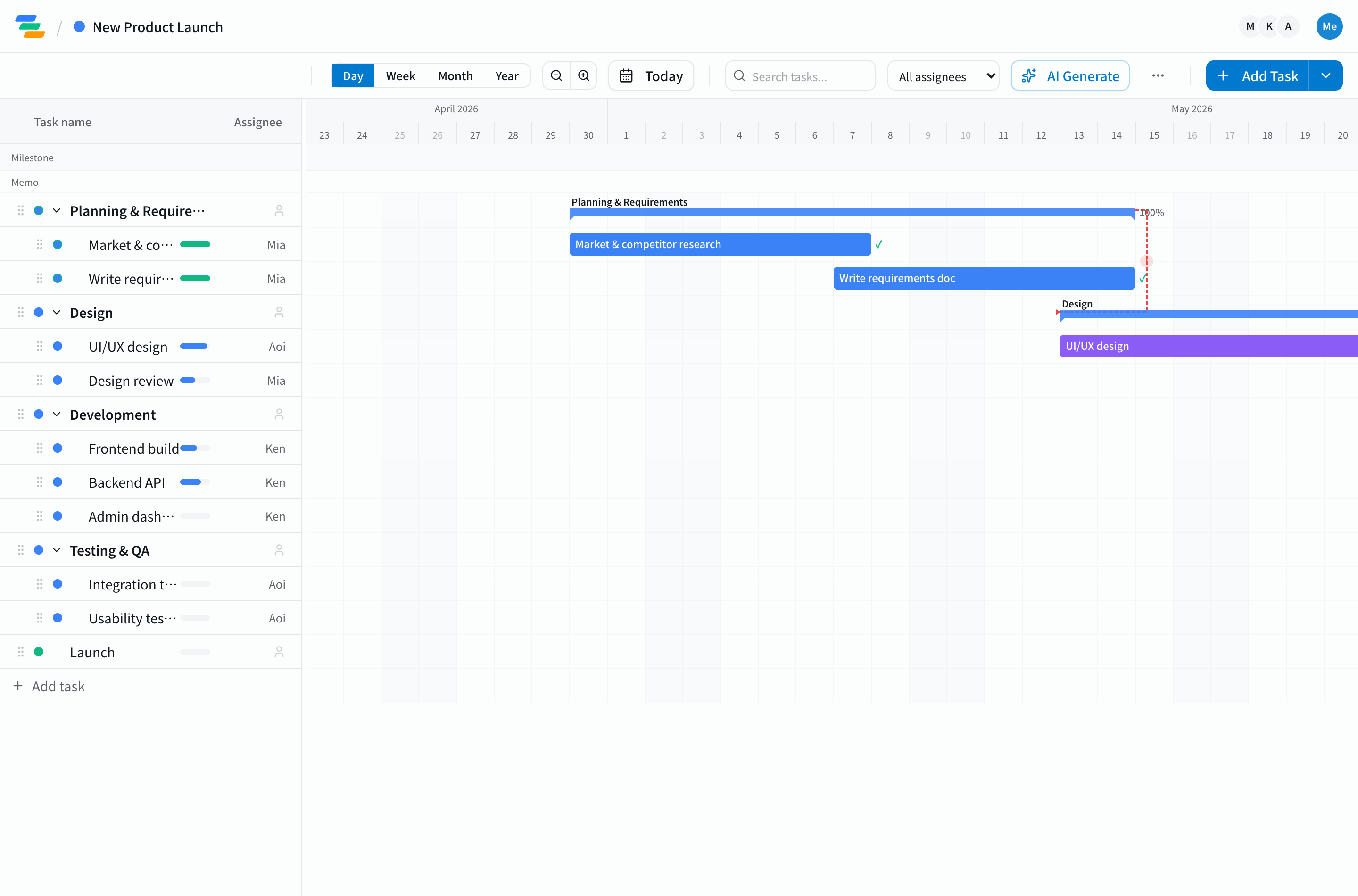
Traditional Gantt building is a stack of manual steps: list tasks, estimate durations, reorder, map dependencies. Auto-generation clears that first hill in one move. All you do is describe the project in words; the AI proposes a common phase structure and standard tasks with start and end dates.
The key point: this is draft generation. Its value is removing the time spent filling a blank sheet; final accuracy comes from human tuning. AI does ~80%, you finish ~20% — fastest, and most reliable.
How to choose a "free" auto-generation tool (where people slip up)
Search "free AI Gantt chart" and many tools appear — but "free" means very different things. Always check these four points.
| Check | Common trap |
|---|---|
| Actually free? | It's really a "14-day free trial," paid after that |
| Editable after generating? | Generation is free, but saving/editing/export is paid |
| Shareable with a team? | Solo use is free; sharing/collaboration is paid |
| Still "drivable" afterward? | Output is locked as image/text and can't be adjusted |
Tools advertising AI auto-generation are growing, but trials and feature-limited free tiers are common. To compare options side by side, see our AI Gantt tool comparison. Below we walk through the actual steps using Ganty, which goes from generation to operation on a free-forever plan.
Step by step: auto-generate in Ganty
Ganty's generation works with no complex setup.
1. Describe the project in one line
Plain language is fine, for example:
- "Create tasks for a website redesign"
- "Plan launch-prep tasks for a new product (shipping next month)"
- "Plan an internal system migration project"
2. AI generates tasks and dates
On submit, the AI generates a list of tasks with names, start dates, and end dates, and adds them straight into the Gantt chart. A blank sheet becomes a real schedule in seconds.
3. Fine-tune with drag-and-drop
Review the draft and adjust durations and order intuitively. Duration estimates and company-specific details are where a human finishes the job.
4. Share and export
Share the finished Gantt via URL on the free plan. Excel/PDF export is available on paid plans.
Prompt tips to improve accuracy
A single line works, but adding these three elements makes it far more usable.
- Goal: "for next month's product launch"
- Key phases: "across planning, production, promotion, and shipping"
- Timeframe / start: "starting July 1, about two months"
Example: "For next month's product launch, create prep tasks across planning, production, promotion, and shipping, starting July 1 over about two months."
The more concrete context you add, the less hand-fixing the draft needs.
Don't stop at generation — a Gantt that keeps moving
The real value of auto-generation is that it flows seamlessly into operation. Projects change daily. With tools that freeze the chart at generation, you end up chasing every change by hand afterward.
In Ganty, you can adjust after generation with drag-and-drop, and by connecting Claude (MCP) you can keep operating it in natural language. "Design slipped two days — push everything after it" or "What's the critical path now?" work while staying connected to AI. If you usually plan in ChatGPT, our guide on making a Gantt chart with ChatGPT helps you split drafting from operating.
Summary
AI Gantt auto-generation is no longer a nice-to-have — it sets the initial speed of your planning. Two things matter: (1) scrutinize what "free" means (free forever? editable and shareable after generating?), and (2) choose a tool you can keep running afterward.
Ganty is free forever for up to 3 members and covers everything from one-line AI generation to editing, sharing, and Claude-powered operation. See the AI Gantt chart page for the feature overview with a no-signup demo, try it free, or get the big picture in our guide to automating project management with AI. For the basics, see the complete guide to Gantt charts.
Related Articles
How to Make a Gantt Chart with ChatGPT (2026): 3 Methods, Their Limits, and the AI-Native Alternative
Three realistic ways to make a Gantt chart with ChatGPT (Mermaid syntax, spreadsheets, custom GPTs), each with sample prompts — plus the hard limits (ChatGPT can't draw or recalculate one) and the AI-native alternative: driving a live Gantt chart through Claude and MCP.
2026-06-06Claude Gantt Chart: How to Create and Actually Operate One (2026)
Three ways to make a Gantt chart with Claude — Artifacts/Mermaid, Claude Code skills, and MCP integration — compared. Artifacts are quick but one-shot and static. With MCP, Claude Desktop and Code read, write, and recalculate a live Gantt chart in natural language. Includes setup steps.
2026-03-05How AI Is Transforming Project Management: Automated Task Generation and Beyond
How AI-powered project management tools automate planning, task generation, and risk detection -- with practical examples and implementation tips.